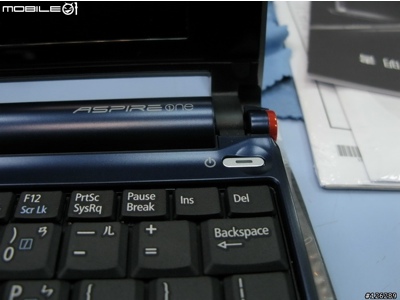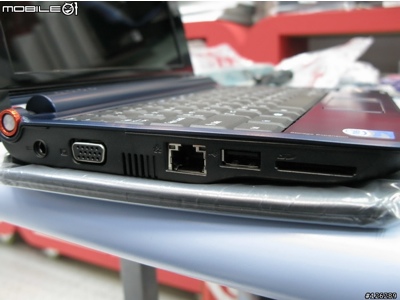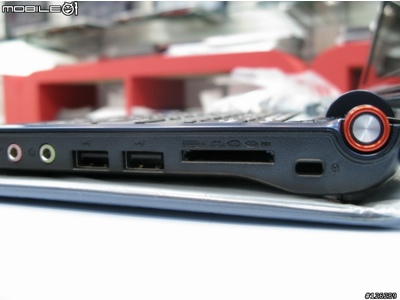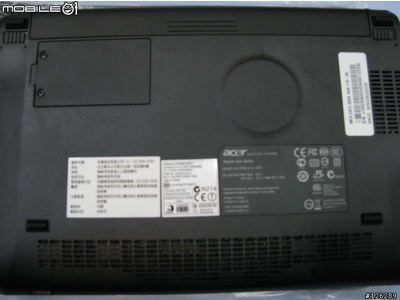
Acer Aspire One Unboxed and Disassembled

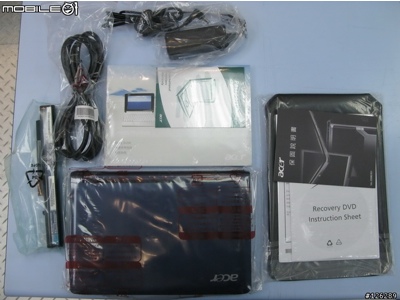
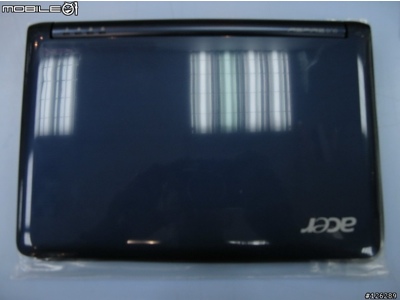
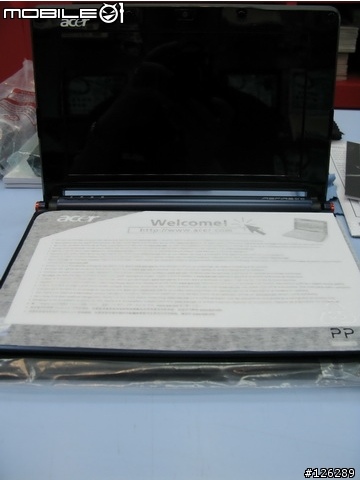
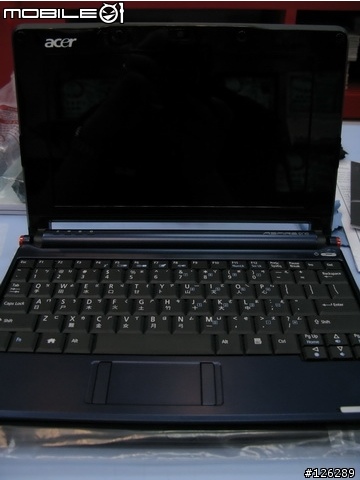
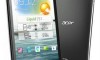
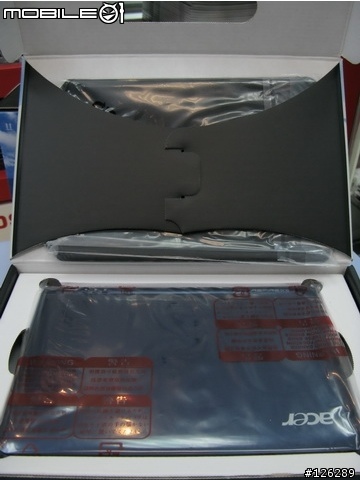
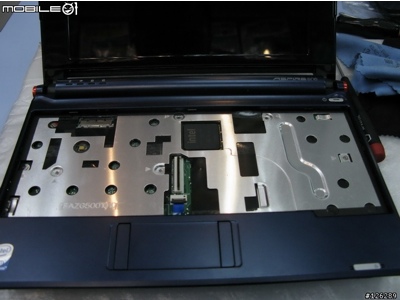
HelloMan, a guy at the Mobile01 has got an Acer Aspire One mini laptop. He showed some nice unbox pictures to us. He has also disassembled the mini laptop.
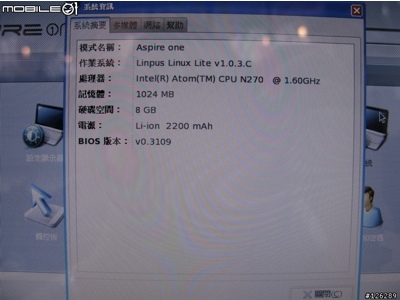
Just a recap, the Acer Aspire One is Eee PC’s challenger. It is powered by the Atom 1.6GHz processor, 1GB of RAM, 8GB SSD. It comes with a 8.9-inch display, built-in 0.3 Megapixel webcam, WIFi and 5-in-1 card reader.
See the pictures after the jump.
Unbox


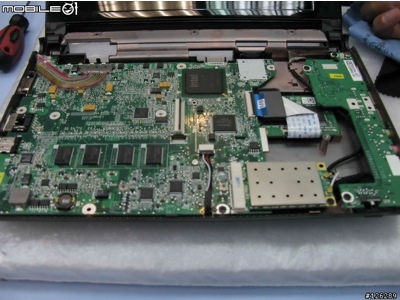
There is a addition slot, for additional WWAN module?

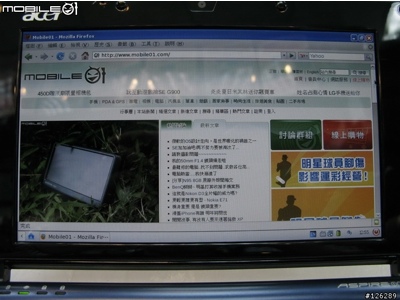
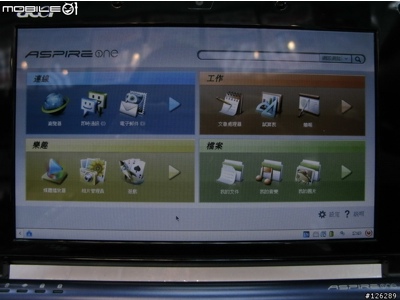
Screenshot of the Linux OS


Disassemble


Add to del.icio.us


So is that just one DIMM slot in there, or am I being blind?
[…] Link Share and Enjoy: These icons link to social bookmarking sites where readers can share and discover new web pages. […]
[…] — truck on over to the read links and see the messes with your very own eyes.Read - Breaking WindRead - Acer Aspire One Unboxed and DisassembledPermalink | Email […]
[…] — truck on over to the read links and see the messes with your very own eyes.Read - Breaking WindRead - Acer Aspire One Unboxed and DisassembledPermalink | Email […]
[…] — truck on over to the read links and see the messes with your very own eyes.Read - Breaking WindRead - Acer Aspire One Unboxed and DisassembledPermalink | Email […]
[…] — truck on over to the read links and see the messes with your very own eyes.Read - Breaking WindRead - Acer Aspire One Unboxed and DisassembledPermalink | Email […]
[…] — truck on over to the read links and see the messes with your very own eyes.Read - Breaking WindRead - Acer Aspire One Unboxed and DisassembledPermalink | Email […]
[…] — truck on over to the read links and see the messes with your very own eyes.Read - Breaking WindRead - Acer Aspire One Unboxed and DisassembledPermalink | Email […]
[…] via itechnews Acer Laptops, atom, card reader, challenger, disassembled, eee pc, itechnews, Laptop Disassembly, pleasures, ssd, webcam, wifi […]
@chuckleh0und:
I don’t think you’re being blind, I count 1 DIMM slot. However, it’s more than likely it can hold a 2GB stick, so perhaps all is not lost. As for needing more than 2GB of memory, keep in mind, this is a mini-laptop, not a desktop replacement
[…] en mano. Haz click en Leer por ver sus intimades en primera persona.Leer - Abriendo el WindLeer - Desempaquetando y desarmando el Acer Aspire One[Artículo en […]
@Shadyman
Damn, I hope there’s an easier way of getting to that one slot then.
It’s true it’s a mini, so it’s not going to need tonnes of RAM. But considering how cheap memory is these days (and the ridiculous price difference that all the OEMs charge between their 512/1Gb models) it seems more sensible to get the cheapest version and shove in a 2Gb DIMM.
Och well, this one’s going for about £220 over here. That’s £100 cheaper than the MSI Wind, and that’s enough to make me overlook pretty much any issues.
one ram brick is soldered onto the motherboard….
and a open (free) ram slot is under the keyboard which is easy to acess.
Good job!
It’s possible to install other linux distro?
[…] Read: Mobile01 (Chinese) Via: iTech News Net […]
[…] Aspire One (portal page) had its disassembly shown over at itechnews.net. The site didn’t really provide any commentary on the cracked open unit so garner what you […]
[…] la série : “on désosse, on désosse” retrouvez sur le site itechnews les photographies de l’intérieur de l’ACER Aspire […]
[…] ogni buon conto, l’Aspire One, disponibile nei colori bianco e blu, si mostra su itechnews attraverso unboxing e smontaggio completo, per i più […]
[…] People are also commenting on the glossy screen which could cause problems with reflections. (via) Finally on the Aspire One, Blogeee (where are they getting all these devices!) have a report and a […]
How do you remove the keyboard exactly? Screws under the lid underneat and then pry open with a small jewelery screwdirve
So I bought one today from the Canada Computers in downtown Toronto. I’ve opened mine up too. People have been commenting about the ram. The ram on the top of the mother board is soldered directly and is non removable. However, it comes with an empty SODIMM slot on the bottom the MOBO which supports an additional 512MB or 1GB of ram. It is a pain in the neck to install, but I’ve done it and it works, and I’m now running with 1.5GB of ram.
Just a couple of tips if you want to try yourself:
Good luck remembering where all the screws went. Remember the MOBO has a tab top left that needs to go back in first.
1) Involves connecting/disconnecting tiny fragile parts. Also not much room for fingers to avoid electrostatic things. Only proceed if you are competent/have $400 to burn.
2) The very first step is to take the keyboard off. There are three clips at the top to start with. No screws. Lift the ribbon connector flap on the MOBO to deconnect it.
3) Next unscrew all visible screws. There are two hidden screws under the rear rubber pads on the bottom. Finding these caused me some grief. In total, 8 on the bottom, and a bunch under the keyboard.
4) Unconnect the touch pad ribbon. It is small.
5) Lift the top off. There are a few clips. Lift from the front towards the back. The Fancy cylinder things on the sides near the screen hinges are completely decoratory, which also caused me some grief.
6) Unscrew the MOBO, unplug the speaker cord from the MOBO. Unplug the ribbon on the right. I think it goes to a flash controller board. Also, the power connector is attached to the bottom of the MOBO; unplug it (its on the lower right).
7) Lift the MOBO right to left. You will see the SODIMM slot on the bottom. Pop ‘er in.
What hard drive does this thing take? Will it take a 2.5 notebook drive and can you swap out the SSD 8gb??
That card with the aluminum plate is the SSD (in the third last pic, bottom right). The power leads are soldered right to the SSD. I don’t know what it is compatible with.
Ian, thanks for info
if you add a second 512 SODIMM does the BIOS (or CPU-Z) shows it’s working in dual-channel mode?
what is a chip model on built-in RAM?
@ Ian
Nope, that’s the wi-fi card, and the two antenna wires on MMCX connectors.
[…] has done a review on Acer’s Aspire One mini notebook. The Aspire One is powered by an Intel Atom 1.6Ghz processor, 512MB RAM, 8GB SSD. It […]
[…] glad that it booted up! Luckily everything worked and the extra RAM showed up in the bios. This post was very […]
Following the advice given by Ian July 18th I succeeded in putting in 1GB in addition. Very many thanks to Ian for publishing this advice.
Just a few additional presisions:
a. The fancy rings/cylinders (Ians point 5) need not to be removed.
b. The blue ribbon/connection (marked MB) on the right of the MOBO must be VERY carefully and correctly placed back when assembling the computer again. The fist time I did not take considerate care, and the machine would not boot.
c. Consider that the screws on the bottom have the same dimension, but differs a bit in length. Take care to place the screws back in their original position.
d. The lid at the bottom need not to be removed.
Then - the power up hopefully will succeed as smooth as it did no me. (A really wonderful machine for browsing the net from my garden table!!)
Please, show where is SATA conectors in that mb?
i wanna conect sata HDD heere !!
also where VIDEO RAM ? i can upgrade it?
DEN
sacmndlg ltzrunmkq epyhikg wasup gzqfodr lkczws rskpjng
@den
no sata connector, it has a solid state hard drive. and you cant upgrade the video ram. this isnt a laptop for doing much more than web surfing and word processing. so games are probably not going to work well.
i have an asus eee and i love it. the One has a bigger hdd and a faster processor tho and it is $100 cheaper. i might get the acer as well tho, just to mess with linpus linux. circuit city sells them. i know because i work there. they’re $379.99 hope it works good. i intend to put xp on it after i mess with linpus.
[…] Acer Aspire one: unboxing and disassemble of acer oneofficial product website- general info + picturesfirst review i’ve found : […]
2 @ pc-tek99
how i can upgrade Video RAM?
and also I see some connector in down of board hear the SSD plased is like SATA but not assebled…
also I add 512 RAM and than install XP and off Page file… for all XP users -!!! INSTALL XP ONLY ON FAT32 !!!! working speed is good..
ICQ 48583929
PS but that SSD is poor :/
hi i did the ram upgrade and now my acer one will NOT turn on!
i check every thing i did and connections. IT wont turn on!!
can any1 help please?
when i connect the power to the acer one, the battery light lights up and thats all. it does not boot up.
can any1 helppleae!
I think #1 is SATA or USB ??? who know?
i need internal sata and additiona 1-2USBs
for BT and other goods
What is #2 interface? (for 3G or GPRS module)
also # 3 is warranty lock swithes?
how reset this memory)
http://img225.imageshack.us/my.php?image=dsc01635qo4.jpg
http://img84.imageshack.us/my.php?image=dsc01639cq3.jpg
ICQ 48583929
cz
Your problem sounds just like mine, cfr. my posting Aug 1st. I suggest that you once more check all flat ribbon connections, especially the broad one on the MOBO and the connection to the display if you have opened that. (Use a magnifying glass to inspect that the connectors are placed correctly. I was not able to discover the failed connection without a magnifier.)
Good luck
geir
ХЕЛЛЛППППП!!!
I think #1 is SATA or USB ??? who know?
What is #2 interface? (for 3G or GPRS module)
i need internal sata and additiona 1-2USBs
for BT and other goods
also # 3 is warranty lock swithes?
how reset this memory)
http://img225.imageshack.us/my.php?image=dsc01635qo4.jpg
http://img84.imageshack.us/my.php?image=dsc01639cq3.jpg
ICQ 48583929
#3 looks like the mouse buttons
Who is #1 ???? is 2xUSB ?? or what?
#3 - is same Micro PCI-E without connectors same as for installed WiFi
also i found SATA without connectors under SN label near #1 ….
also i foud place for BT probably !!! under F10 button on mother board! but without connectors
so many intresting!
all next here
RUSSAN
http://eee-pc.ru/forum/viewtopic.php?pid=29088#p29088
I am new to using linux, i am having difficulty running java on mozilla firefox. Can anybody help?